
Getting started
Your first task in 5 minutes
Install PALO, capture a picture, choose what happens when it shows up, and press F8.
1Install PALO
- Download PALO_Setup.exe and open it from your Downloads folder.
- If Windows says it protected your PC, click More info, then Run anyway. PALO is not signed with a code-signing certificate yet.
- Click Next through Setup. Leave “Launch PALO” ticked and click Finish.
PALO asks for administrator rights when it opens. Windows only lets an app click inside programs and games that run as administrator if the app does too.
2Create your free account
- In PALO, click Create account. Choose a username, enter your email and a password, or use Sign in with Google.
- Enter the 6-digit code from the email we send you. It can take a minute and may be in Spam.
- Tick “Remember me” to stay signed in. You can also create the account on the website first.
One account works on one computer at a time. You can move it to a new computer once a month in the app.
3Make your first task
- Click + New and give the task a name.
- Click Find image under “Add step”, then Capture from screen. Drag a box around the button or icon you want.
- Choose what happens when it is found: left, right or double click, move the mouse, press a key, or just box it (detect only).
- Click Test. A box shows where PALO found it, with a score from 0 to 1.
- Add more steps if you need them: Click point, Press key, Type text or Wait.
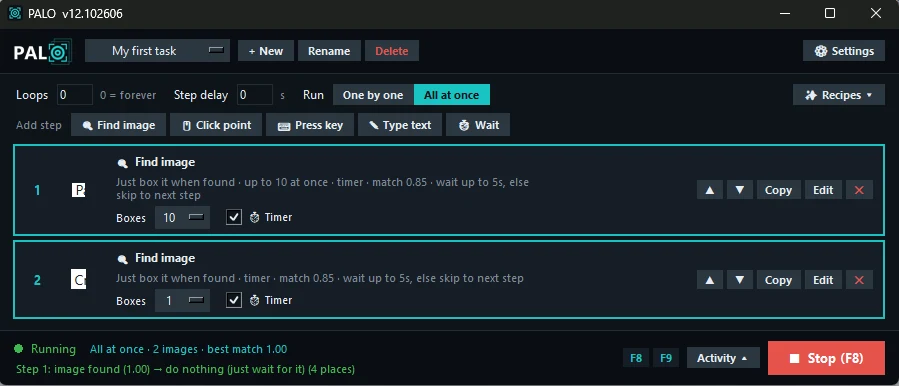
Find imageLooks for a picture and acts on it. Can wait up to N seconds, then skip or stop.
Click pointClicks a fixed spot you pick on the screen.
Press keyKeys and shortcuts like
enter, f5, ctrl+c, alt+tab.Type text / WaitTypes into the focused window, or waits seconds with optional random extra time.
4Run and stop
- Loops: how many times the task repeats.
0= forever. - Run: One by one does the steps in order. All at once watches every picture together and acts on whichever shows up.
- Press F8 to start and stop, F9 to quit. If another program uses those keys, PALO switches to Ctrl+F8 / Ctrl+F9 and shows it at the bottom left.
- Emergency stop: move the mouse to the very top-left corner of the screen.
| Box colour | Meaning |
|---|---|
| Green | Passed your Match threshold. PALO acts on it. |
| Yellow | Close but below the threshold. PALO does not act on it. |
5Tips for fast, reliable matches
- Capture a little more than the button. A tiny picture, like one letter, also matches similar letters.
- Raise Match threshold to 0.93–0.95 if PALO clicks the wrong thing. Lower it a little if it misses.
- Set area limits the search to part of the screen. It is faster and makes fewer wrong clicks.
- Grayscale ignores colour. Turn it off when colour is what tells two things apart.
- Boxes lets one step handle up to 50 copies of the same picture, best match first or in reading order.
Online games: check the game's rules first. Many online games don't allow automation and may ban accounts that use it.
6More
- Recipes in the app give you ready-made tasks to start from.
- Move your tasks to another PC: copy the
tasksandimagesfolders from the PALO folder. - Updates install themselves when PALO starts. They are digitally signed and your tasks are kept.
- Uninstall: open
Uninstall.exein the PALO folder, or Settings › Apps › PALO › Uninstall. - Problems? In the app: Settings › Account › Report a problem. Or email [email protected].